Stop Paying Evernote — Beta Testers Convert to OneNote Free
TL;DR
We built an online platform (SaaS) that converts your Evernote notebooks to Microsoft OneNote — formatting, images, tags, attachments, and all. Microsoft’s servers can be finicky, so the platform handles all the retry logic, rate limiting, and error recovery needed to reliably push your notes through. It’s free during our beta testing period only. We’re looking for 50 beta testers to help us validate at real-world scale. Jump to sign up.
Evernote Keeps Getting More Expensive
If you use Evernote, you’ve probably noticed the price creeping up over the years. In our case, we watched a single-user Evernote license go from $49 a year to $250 a year over not that long a time — which made Evernote just unaffordable for us. That got us thinking about alternatives.
Microsoft OneNote is a great note-taking app — it’s full-featured, well-supported, and comes included with Microsoft 365. If you already have a Microsoft 365 subscription, you have OneNote. Your notebooks live in OneDrive with the same security and reliability Microsoft provides across all its cloud services.
So we built a converter to make the switch easy.
What the Converter Does
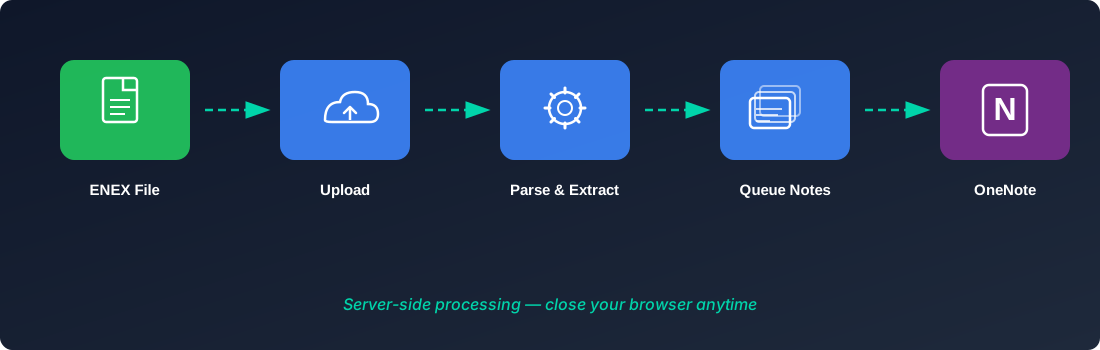 High-level view of the conversion pipeline
Here’s what our converter handles:
- Upload your ENEX export files — drag and drop into the web app, or save your
.enexfiles to any folder in OneDrive and pick them from there - Handles massive files — we’ve tested with notebooks over 5 GB
- Preserves everything — formatting, images, attachments, tags, metadata, creation dates
- Evernote notebook names become OneNote sections — each
.enexfile you export from Evernote is named after the notebook. Our converter uses that name as the section name in OneNote, so your organization carries over. - Start it and walk away — our servers process your notes for you. Close your browser, go make coffee. The conversion keeps running on our end.
How the Conversion Works
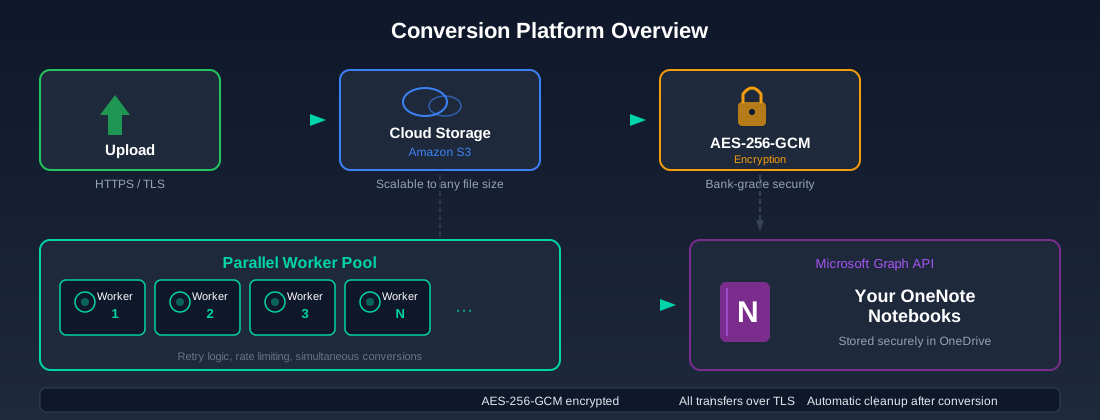 High-level view of our conversion platform
We built this platform to handle conversions reliably at scale. Here’s the big picture.
Scalable Cloud Storage
Your ENEX export file is uploaded over HTTPS/TLS to Amazon S3 cloud storage. S3 lets us handle files of any size — we’ve tested with notebooks over 5 GB — and run many conversions simultaneously without bottlenecks.
AES-256 Encryption
Your data is encrypted with AES-256-GCM — the same encryption standard used by banks and governments. We’re making our best effort to protect the privacy and integrity of your data while delivering conversions at scale.
Parallel Worker Processes
Our platform uses a pool of worker processes that run conversions in parallel. Each worker handles the conversion of individual notes — transforming your content, images, tags, and attachments into OneNote format and pushing them to your notebook via Microsoft’s Graph API.
Microsoft throttles how fast you can push data into OneNote, so a typical conversion runs at about 10 notes per minute. That means a large notebook with thousands of notes can take hours or even days to complete. Our infrastructure is built to handle that — the workers run continuously, and we’ve invested significant effort in real-time heuristics that figure out how to push data to Microsoft’s cloud as fast as possible while staying reliable. If Microsoft pushes back, our workers back off, wait, and retry automatically.
This architecture means we can process many users’ conversions at the same time, and your conversion doesn’t slow down when others are running theirs.
Automatic Cleanup
Once your conversion is complete, temporary processing data is automatically cleaned up. We don’t hold onto your notes — this is a one-shot conversion tool, not a storage service.
What Your Notes Look Like in OneNote
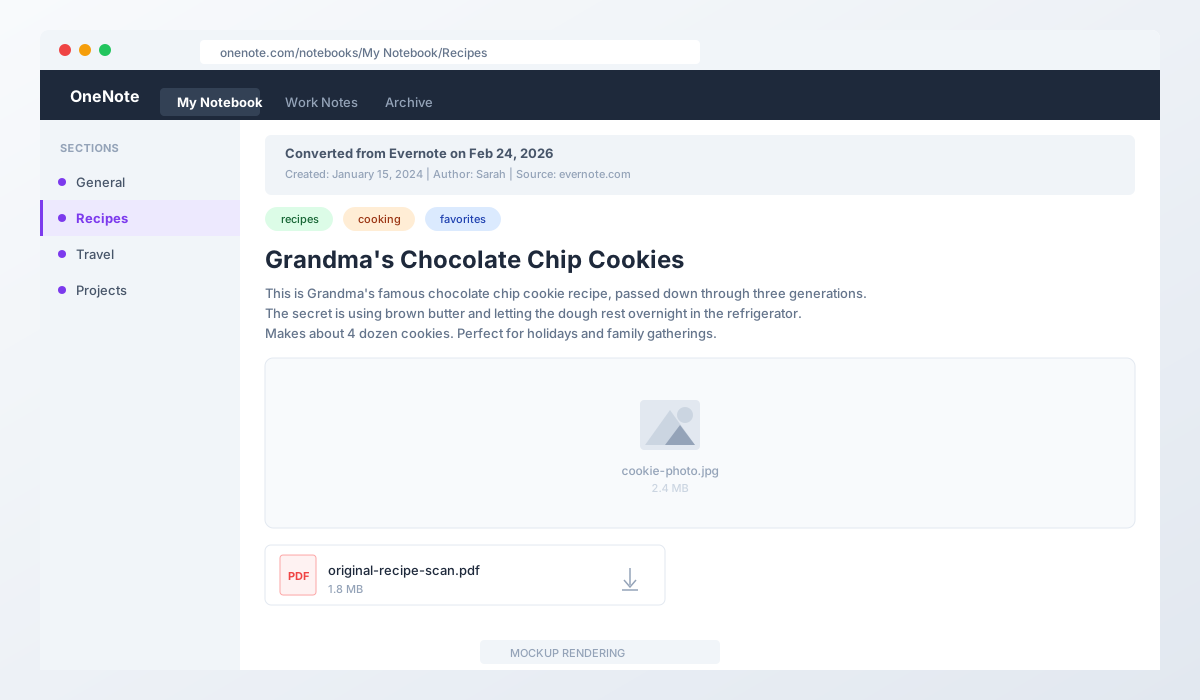 A converted note in OneNote — metadata, tags, formatting, images, and attachments all preserved
Every converted note includes:
- Metadata header — shows when the note was originally created, the author, and the source
- Tags as colored pills — your Evernote tags are displayed as styled badges at the top of the note
- Formatted text — headings, bold, italic, lists, links — all carried over
- Embedded images — photos and screenshots are placed directly in the note
- Attachment cards — PDFs, documents, and other files are shown as downloadable cards with file type icons *
Before and After
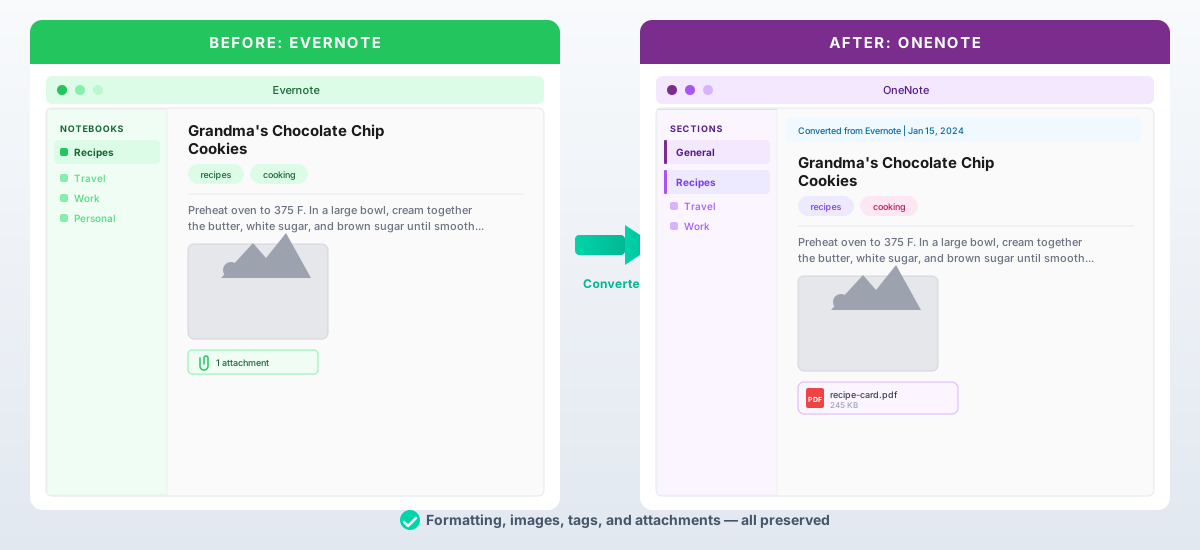 Same note, same content — just a better home
A Note on Large Attachments
Microsoft’s OneNote API enforces a 25 MB size limit per data part when creating pages. That means large attachments — big PDFs, high-resolution images, video files — can’t be embedded directly into a OneNote page.
Our converter handles this automatically. When an attachment exceeds the limit, we upload it to a dedicated folder in your OneDrive (alongside your OneNote notebooks) and insert a link to it in the note. You still have full access to the file — it’s right there in your OneDrive — it’s just linked rather than embedded. For most notes with typical attachments, everything embeds normally.
Your Notes Live in OneDrive — Microsoft’s Cloud
Once your notes are in OneNote, they’re stored in OneDrive — Microsoft’s cloud storage. This means your notes are backed by the same infrastructure Microsoft uses for its enterprise customers. For details on how Microsoft protects your data, see How OneDrive safeguards your data.
The Upload Process — Simple Multi-Step Wizard
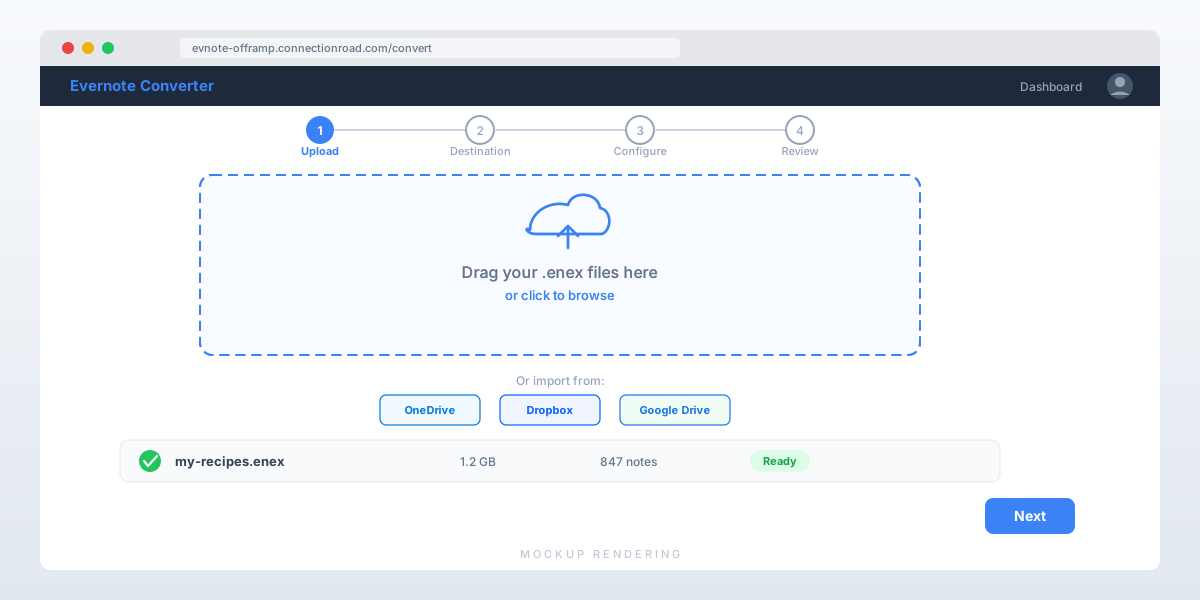 The multi-step wizard guides you through the conversion process
The conversion wizard walks you through four steps:
- Upload — Drag and drop your
.enexfiles, or pick them from any folder in your OneDrive - Select Destination — Choose your OneNote notebook and section
- Configure — Review settings like tag handling and attachment options
- Review and Submit — Confirm everything looks right and start the conversion
Once you hit submit, our servers take over. You can close the tab and come back anytime to check progress. We also send you hourly status emails with a direct link to your live conversion dashboard — including a mobile-friendly link you can check on your phone without logging in.
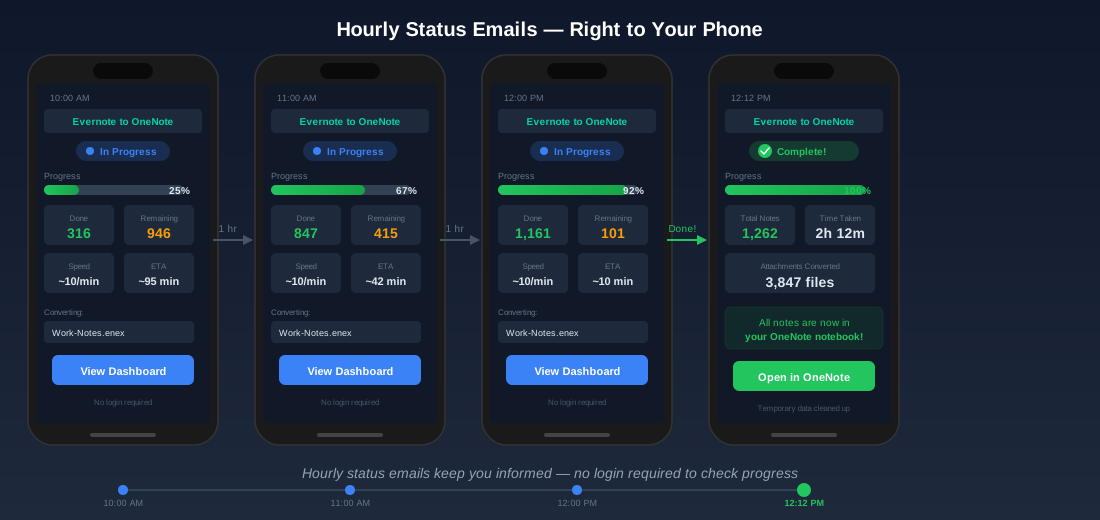 Hourly status updates land in your inbox until the conversion is complete
Your Data, Your Control
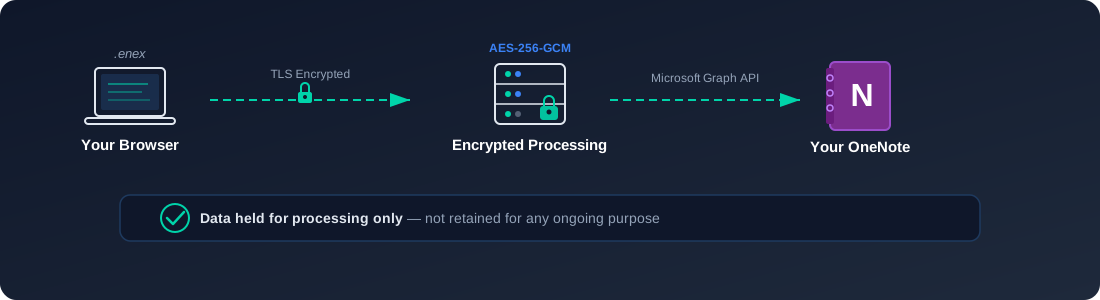 Your data flow during the conversion process
We take data handling seriously. Here’s how we protect your notes:
- In transit: All uploads and API calls go over HTTPS/TLS — your data is encrypted from your browser to our servers and from our servers to Microsoft
- During processing: Your notes are encrypted with AES-256-GCM before any storage — each note gets a unique key and initialization vector
- After conversion: Temporary data is automatically cleaned up. Your data is not retained for any ongoing purpose
- No long-term storage: This is a one-shot conversion tool. We process your data and it’s done.
We’re making our best efforts to ensure the privacy and integrity of your data while delivering these conversions at scale. We’re not a storage service — we’re a migration tool.
Why Beta Test? (And It’s OK to Wait)
Important: The converter is free during our beta testing period only. Once we’re confident the system scales reliably, we’ll transition to a paid service. This is not a permanently free tool.
We’ve done extensive internal testing and we’re confident the converter works well. But we need real-world scale — real notebooks with real content diversity, real attachment types, and real notebook sizes.
We’re starting with 50 beta spots. As we gain confidence at each scale level, we’ll expand the program. Once we’ve validated our scaling, the free beta will end and we’ll launch a paid version.
Here’s what you should know:
- Free during beta only. We’re offering free conversions while we validate the system at real-world scale. This won’t last forever — a paid version is coming.
- It’s a one-shot conversion. Once your notes are in OneNote, that’s it. There’s no ongoing subscription, no recurring charge, nothing to cancel.
- If you’d rather wait, that’s completely fine. A paid version with full polish and guarantees is on the way. If you’re not comfortable being an early tester, we totally understand — bookmark the page and come back when we launch.
The free beta is for people who are comfortable being early adopters and who want to stop paying Evernote sooner rather than later.
Get Started as a Beta Tester
Ready to move your notes? Here’s how:
- Sign up at evnote-offramp.connectionroad.com
- Export your notebooks from Evernote (see instructions below)
- Upload and convert — the wizard walks you through it
Spots are limited. If the waitlist is full, leave your email and we’ll notify you when a spot opens up.
Questions? Reach us at support@connectionroad.com.
How to Export from Evernote
Before you can convert, you need to export your notebooks from Evernote as .enex files:
- Open the Evernote desktop app (Windows or Mac)
- Right-click on the notebook you want to export
- Select Export Notes…
- Choose ENEX format (.enex)
- Save the file
Repeat for each notebook you want to migrate. For detailed instructions, see Evernote’s export guide.
The ENEX format is Evernote’s XML-based export format. It contains all your notes, formatting, images, and attachments in a single file.
Further Reading
- Microsoft OneNote — official product page
- Microsoft 365 plans and pricing — see what’s included
- How OneDrive safeguards your data — encryption and security details
- OneDrive encryption technical details — per-file AES-256 encryption
- Evernote pricing — current plan comparison
- Export notes from Evernote — ENEX export guide
- ENEX format — Wikipedia on the export format