Using AI to Create Secure MySQL Password Rotation Scripts (Without Exposing Secrets)
TL;DR
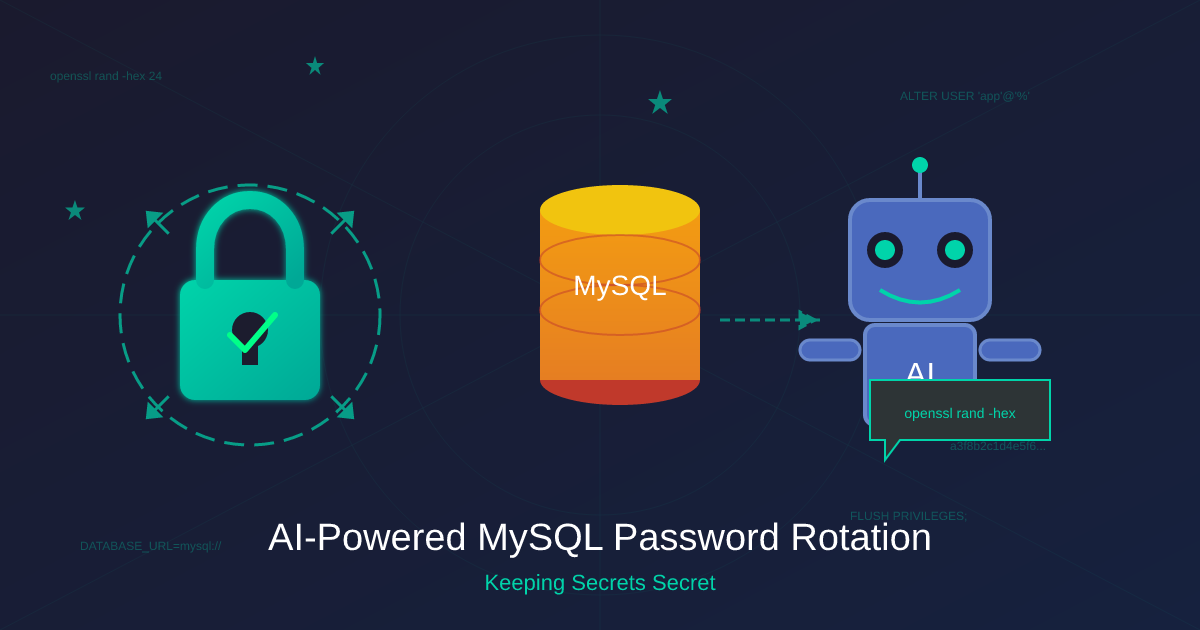
Use AI to write password rotation scripts, but generate the actual passwords locally with openssl rand -hex 24 so they never touch the AI. Jump to the script.
Introduction
Managing database passwords across multiple applications is tedious. You’ve got three, five, maybe a dozen apps each connecting to their own MySQL database. Each needs a unique, strong password. Each time you rotate passwords, you need to:
- Generate a strong password
- Update the MySQL user
- Update the app’s environment variables
- Restart the app
- Repeat for every single database
This is exactly the kind of repetitive, error-prone work that AI assistants excel at automating. But here’s the catch: you don’t want to paste your actual passwords into ChatGPT, Claude, or any other AI.
The solution? Ask AI to write a script that generates passwords locally using openssl. The AI sees the script structure. Your passwords never leave your machine.
The Problem We’re Solving
Let’s say you’re running a Docker-based deployment with multiple apps:
- pizza-emergency-hotline - Your critical pizza ordering system
- cat-photo-empire - A social network for cat photography enthusiasts
- procrastination-tracker - An app that ironically tracks how much time you spend procrastinating
Each app has its own MySQL database. Each should have its own dedicated database user (not root!). Each user needs a strong, unique password.
Doing this manually means:
- Coming up with passwords (humans are bad at this)
- Running MySQL commands to create/update users
- Copying passwords into environment variables
- Hoping you didn’t make a typo somewhere
A script can do all of this in seconds, with cryptographically secure passwords, and output ready-to-paste environment variables.
The Complete Script
Here’s the full Bash script that AI helped create. Note that it generates passwords locally using openssl - the AI never saw the actual password values:
#!/usr/bin/env bash
#
# update-mysql-app-users.sh
#
# HOW TO RUN (use bash, not sh):
#   bash ./update-mysql-app-users.sh
#
# What it does:
# - Prompts for MySQL root password (hidden input)
# - Generates unique URL-safe passwords for each app user
# - Creates/updates MySQL users + grants for each schema
# - Prints DATABASE_URL lines you can paste into your app env

set -euo pipefail

# -------- Config --------
MYSQL_CONTAINER_NAME="${MYSQL_CONTAINER_NAME:-mysql-server}"

DATABASE_HOST="${DATABASE_HOST:-db.example.com}"
DATABASE_PORT="${DATABASE_PORT:-3306}"
DATABASE_SSL_QUERY="${DATABASE_SSL_QUERY:-sslaccept=accept_invalid_certs}"

# Databases (schema names)
DATABASE_NAME_PIZZA="${DATABASE_NAME_PIZZA:-pizza-emergency-hotline}"
DATABASE_NAME_CATS="${DATABASE_NAME_CATS:-cat-photo-empire}"
DATABASE_NAME_PROCRASTINATION="${DATABASE_NAME_PROCRASTINATION:-procrastination-tracker}"

# Users (one per database)
DATABASE_USER_PIZZA="${DATABASE_USER_PIZZA:-pizza_app}"
DATABASE_USER_CATS="${DATABASE_USER_CATS:-cats_app}"
DATABASE_USER_PROCRASTINATION="${DATABASE_USER_PROCRASTINATION:-procrastination_app}"

# -------- Helpers --------
generate_password() {
  # URL-safe (hex) password: 48 characters
  # This runs LOCALLY - the password never leaves your machine
  openssl rand -hex 24
}

prompt_mysql_root_password() {
  printf "Enter MySQL root password (input hidden): "
  IFS= read -r -s MYSQL_ROOT_PASSWORD
  printf "\n"
  export MYSQL_ROOT_PASSWORD
}

# -------- Main --------
command -v docker >/dev/null 2>&1 || { echo "docker not found"; exit 1; }
command -v openssl >/dev/null 2>&1 || { echo "openssl not found"; exit 1; }

echo "=== MySQL App User Password Rotation ==="
echo ""

prompt_mysql_root_password

# Generate new passwords locally
PIZZA_PASSWORD="$(generate_password)"
CATS_PASSWORD="$(generate_password)"
PROCRASTINATION_PASSWORD="$(generate_password)"

# Build SQL (idempotent: creates if missing, always updates password)
SQL=$(cat <<SQL_EOF
-- Pizza Emergency Hotline
CREATE USER IF NOT EXISTS '${DATABASE_USER_PIZZA}'@'%' IDENTIFIED BY '${PIZZA_PASSWORD}';
ALTER USER '${DATABASE_USER_PIZZA}'@'%' IDENTIFIED BY '${PIZZA_PASSWORD}';
GRANT ALL PRIVILEGES ON \`${DATABASE_NAME_PIZZA}\`.* TO '${DATABASE_USER_PIZZA}'@'%';

-- Cat Photo Empire
CREATE USER IF NOT EXISTS '${DATABASE_USER_CATS}'@'%' IDENTIFIED BY '${CATS_PASSWORD}';
ALTER USER '${DATABASE_USER_CATS}'@'%' IDENTIFIED BY '${CATS_PASSWORD}';
GRANT ALL PRIVILEGES ON \`${DATABASE_NAME_CATS}\`.* TO '${DATABASE_USER_CATS}'@'%';

-- Procrastination Tracker
CREATE USER IF NOT EXISTS '${DATABASE_USER_PROCRASTINATION}'@'%' IDENTIFIED BY '${PROCRASTINATION_PASSWORD}';
ALTER USER '${DATABASE_USER_PROCRASTINATION}'@'%' IDENTIFIED BY '${PROCRASTINATION_PASSWORD}';
GRANT ALL PRIVILEGES ON \`${DATABASE_NAME_PROCRASTINATION}\`.* TO '${DATABASE_USER_PROCRASTINATION}'@'%';

FLUSH PRIVILEGES;
SQL_EOF
)

echo "Updating MySQL users in container: ${MYSQL_CONTAINER_NAME}..."
docker exec \
  -e MYSQL_PWD="${MYSQL_ROOT_PASSWORD}" \
  "${MYSQL_CONTAINER_NAME}" \
  mysql -uroot -e "${SQL}"

unset MYSQL_ROOT_PASSWORD

echo ""
echo "==========================================="
echo "SUCCESS! Paste these into your app configs:"
echo "==========================================="
echo ""

echo "# Pizza Emergency Hotline"
echo "DATABASE_URL=mysql://${DATABASE_USER_PIZZA}:${PIZZA_PASSWORD}@${DATABASE_HOST}:${DATABASE_PORT}/${DATABASE_NAME_PIZZA}?${DATABASE_SSL_QUERY}"
echo ""

echo "# Cat Photo Empire"
echo "DATABASE_URL=mysql://${DATABASE_USER_CATS}:${CATS_PASSWORD}@${DATABASE_HOST}:${DATABASE_PORT}/${DATABASE_NAME_CATS}?${DATABASE_SSL_QUERY}"
echo ""

echo "# Procrastination Tracker"
echo "DATABASE_URL=mysql://${DATABASE_USER_PROCRASTINATION}:${PROCRASTINATION_PASSWORD}@${DATABASE_HOST}:${DATABASE_PORT}/${DATABASE_NAME_PROCRASTINATION}?${DATABASE_SSL_QUERY}"
echo ""

echo "Done! Don't forget to restart your app containers after updating their environment variables."
Breaking Down the Key Parts
Password Generation (Local!):
generate_password() {
  openssl rand -hex 24
}
This generates a 48-character hexadecimal password using your system’s cryptographically secure pseudorandom number generator. The password exists only in your terminal session.
Hidden Password Prompt:
prompt_mysql_root_password() {
  printf "Enter MySQL root password (input hidden): "
  IFS= read -r -s MYSQL_ROOT_PASSWORD
  printf "\n"
  export MYSQL_ROOT_PASSWORD
}
The -s flag hides your typing. The password never appears on screen.
Idempotent SQL:
CREATE USER IF NOT EXISTS 'pizza_app'@'%' IDENTIFIED BY '...';
ALTER USER 'pizza_app'@'%' IDENTIFIED BY '...';
GRANT ALL PRIVILEGES ON `pizza-emergency-hotline`.* TO 'pizza_app'@'%';
This is safe to run multiple times. If the user exists, it updates the password. If not, it creates the user.
Ready-to-Paste Output:
DATABASE_URL=mysql://pizza_app:a3f8b2c1d4e5...@db.example.com:3306/pizza-emergency-hotline?sslaccept=accept_invalid_certsCopy this directly into your Docker Compose file, Kubernetes secret, or environment variable configuration.
Sample Prompts That Could Generate This
If you want AI to create a similar script for your setup, here are some effective prompts:
Basic prompt:
“Write a bash script that rotates MySQL passwords for multiple database users. It should generate passwords locally using openssl, update the MySQL users, and output DATABASE_URL environment variables I can paste into Docker.”
More specific:
“I need a bash script that:
- Prompts for MySQL root password with hidden input
- Generates secure passwords using openssl rand -hex 24
- Creates or updates MySQL users for three databases: orders, inventory, and analytics
- Outputs Prisma-compatible DATABASE_URL strings
- Works with MySQL running in a Docker container”
Key phrases to include:
- “generate passwords locally” or “use openssl for password generation”
- “hidden password input”
- “output environment variables”
- “idempotent” (safe to run multiple times)
What NOT to include in your prompt:
- Your actual current passwords
- Your real server hostnames (use placeholders)
- Any actual credentials
Why This Approach Keeps Secrets Safe
Here’s the security model:
| What | Where It Lives | Exposed to AI? |
|---|---|---|
| Script logic | AI chat | Yes (that’s the point) |
| Password generation | Your machine (openssl) | No |
| New passwords | Your terminal output | No |
| Root password | Your keyboard input | No |
| DATABASE_URL output | Your terminal only | No |
The AI sees the structure: “generate a password, put it in this SQL template, output it in this format.” The AI never sees the actual values those placeholders get filled with.
Defense in depth:
- Passwords generated with cryptographic randomness (
openssl rand) - Root password input is hidden (no shoulder surfing)
- Passwords exist only in your terminal session
- You paste them into your secure config management
Better Secret Management Options
The script outputs DATABASE_URL strings you can paste somewhere. But where? Here are your options, from simplest to most sophisticated.
| Option | Best For | Complexity |
|---|---|---|
| Docker Compose env_file | Local dev, simple deployments | Low |
| Docker Secrets | Swarm deployments | Medium |
| AWS Secrets Manager | AWS-hosted apps | Medium |
| HashiCorp Vault | Enterprise, multi-cloud | High |
| Kubernetes Secrets | K8s deployments | Medium |
| 1Password/Bitwarden CLI | Small teams, personal projects | Low |
Option 1: Docker Compose with env_file
Best for: Local development, simple single-server deployments
Docker Compose uses a YAML configuration file to define multi-container applications.
The .env file (NEVER commit this to Git):
# .env - add this file to .gitignore!

# Pizza Emergency Hotline
PIZZA_DATABASE_URL=mysql://pizza_app:a3f8b2c1d4e5f6a7b8c9d0e1f2a3b4c5d6e7f8a9b0c1d2e3@db.example.com:3306/pizza-emergency-hotline?sslaccept=accept_invalid_certs

# Cat Photo Empire
CATS_DATABASE_URL=mysql://cats_app:b4c5d6e7f8a9b0c1d2e3f4a5b6c7d8e9f0a1b2c3d4e5f6a7@db.example.com:3306/cat-photo-empire?sslaccept=accept_invalid_certs

# Procrastination Tracker
PROCRASTINATION_DATABASE_URL=mysql://procrastination_app:c5d6e7f8a9b0c1d2e3f4a5b6c7d8e9f0a1b2c3d4e5f6a7b8@db.example.com:3306/procrastination-tracker?sslaccept=accept_invalid_certs
docker-compose.yml:
version: '3.8'

services:
  pizza-api:
    image: pizza-emergency-hotline:latest
    env_file:
      - .env
    environment:
      - DATABASE_URL=${PIZZA_DATABASE_URL}

  cats-api:
    image: cat-photo-empire:latest
    env_file:
      - .env
    environment:
      - DATABASE_URL=${CATS_DATABASE_URL}

  procrastination-api:
    image: procrastination-tracker:latest
    env_file:
      - .env
    environment:
      - DATABASE_URL=${PROCRASTINATION_DATABASE_URL}
.gitignore (CRITICAL):
# Never commit secrets!
.env
.env.local
.env.*.local
*.pem
*.key
Option 2: Docker Secrets (Swarm Mode)
Best for: Docker Swarm deployments, when you need secrets encrypted at rest
Creating secrets:
#!/usr/bin/env bash
# create-docker-secrets.sh

# Generate and store secrets (run once, or when rotating)
openssl rand -hex 24 | docker secret create pizza_db_password -
openssl rand -hex 24 | docker secret create cats_db_password -
openssl rand -hex 24 | docker secret create procrastination_db_password -

echo "Secrets created. List them with: docker secret ls"
docker-compose.yml (Swarm mode):
version: '3.8'

services:
  pizza-api:
    image: pizza-emergency-hotline:latest
    secrets:
      - pizza_db_password
    environment:
      - DB_HOST=db.example.com
      - DB_USER=pizza_app
      - DB_NAME=pizza-emergency-hotline
      - DB_PASSWORD_FILE=/run/secrets/pizza_db_password

  cats-api:
    image: cat-photo-empire:latest
    secrets:
      - cats_db_password
    environment:
      - DB_HOST=db.example.com
      - DB_USER=cats_app
      - DB_NAME=cat-photo-empire
      - DB_PASSWORD_FILE=/run/secrets/cats_db_password

secrets:
  pizza_db_password:
    external: true
  cats_db_password:
    external: true
  procrastination_db_password:
    external: true
Reading secrets in your app (Node.js example):
// db-config.js
const fs = require('fs');
const path = require('path');

function getSecret(secretName) {
  const secretPath = process.env[`${secretName}_FILE`];
  if (secretPath && fs.existsSync(secretPath)) {
    return fs.readFileSync(secretPath, 'utf8').trim();
  }
  // Fallback to environment variable for local dev
  return process.env[secretName];
}

const dbConfig = {
  host: process.env.DB_HOST,
  user: process.env.DB_USER,
  password: getSecret('DB_PASSWORD'),
  database: process.env.DB_NAME,
};

module.exports = dbConfig;
Option 3: AWS Secrets Manager
Best for: AWS-hosted applications, teams already using AWS
Creating a secret with AWS CLI:
#!/usr/bin/env bash
# create-aws-secrets.sh

# Generate passwords locally
PIZZA_PASSWORD=$(openssl rand -hex 24)
CATS_PASSWORD=$(openssl rand -hex 24)
PROCRASTINATION_PASSWORD=$(openssl rand -hex 24)

# Store in AWS Secrets Manager
aws secretsmanager create-secret \
  --name "prod/pizza-emergency-hotline/db" \
  --description "Database credentials for Pizza Emergency Hotline" \
  --secret-string "{\"username\":\"pizza_app\",\"password\":\"${PIZZA_PASSWORD}\",\"host\":\"db.example.com\",\"port\":3306,\"database\":\"pizza-emergency-hotline\"}"

aws secretsmanager create-secret \
  --name "prod/cat-photo-empire/db" \
  --description "Database credentials for Cat Photo Empire" \
  --secret-string "{\"username\":\"cats_app\",\"password\":\"${CATS_PASSWORD}\",\"host\":\"db.example.com\",\"port\":3306,\"database\":\"cat-photo-empire\"}"

aws secretsmanager create-secret \
  --name "prod/procrastination-tracker/db" \
  --description "Database credentials for Procrastination Tracker" \
  --secret-string "{\"username\":\"procrastination_app\",\"password\":\"${PROCRASTINATION_PASSWORD}\",\"host\":\"db.example.com\",\"port\":3306,\"database\":\"procrastination-tracker\"}"

echo "Secrets created in AWS Secrets Manager"
Retrieving in Node.js:
// aws-secrets.js
const { SecretsManagerClient, GetSecretValueCommand } = require('@aws-sdk/client-secrets-manager');

const client = new SecretsManagerClient({ region: 'us-east-1' });

async function getDatabaseUrl(secretName) {
  const command = new GetSecretValueCommand({ SecretId: secretName });
  const response = await client.send(command);
  const secret = JSON.parse(response.SecretString);

  return `mysql://${secret.username}:${secret.password}@${secret.host}:${secret.port}/${secret.database}`;
}

// Usage
async function initDatabase() {
  const databaseUrl = await getDatabaseUrl('prod/pizza-emergency-hotline/db');
  // Use databaseUrl with your ORM (Prisma, Sequelize, etc.)
}

module.exports = { getDatabaseUrl };
Retrieving in Python:
# aws_secrets.py
import json
import boto3
from botocore.exceptions import ClientError

def get_database_url(secret_name: str, region: str = "us-east-1") -> str:
    """Retrieve database URL from AWS Secrets Manager."""
    client = boto3.client("secretsmanager", region_name=region)

    try:
        response = client.get_secret_value(SecretId=secret_name)
        secret = json.loads(response["SecretString"])

        return (
            f"mysql://{secret['username']}:{secret['password']}"
            f"@{secret['host']}:{secret['port']}/{secret['database']}"
        )
    except ClientError as e:
        raise Exception(f"Failed to retrieve secret {secret_name}: {e}")

# Usage
if __name__ == "__main__":
    db_url = get_database_url("prod/pizza-emergency-hotline/db")
    print(f"Connected to: {db_url.split('@')[1]}")  # Don't print credentials!
IAM Policy (attach to your EC2 instance role or ECS task role):
{
  "Version": "2012-10-17",
  "Statement": [
    {
      "Effect": "Allow",
      "Action": [
        "secretsmanager:GetSecretValue"
      ],
      "Resource": [
        "arn:aws:secretsmanager:us-east-1:123456789012:secret:prod/*"
      ]
    }
  ]
}
Option 4: HashiCorp Vault
Best for: Enterprise environments, multi-cloud, fine-grained access control
Setting up Vault and storing secrets:
#!/usr/bin/env bash
# vault-setup-secrets.sh

# Start Vault in dev mode (for testing only!)
# In production, use a proper Vault cluster
vault server -dev &
export VAULT_ADDR='http://127.0.0.1:8200'

# Enable the KV secrets engine
vault secrets enable -path=secret kv-v2

# Generate and store secrets
PIZZA_PASSWORD=$(openssl rand -hex 24)
CATS_PASSWORD=$(openssl rand -hex 24)
PROCRASTINATION_PASSWORD=$(openssl rand -hex 24)

vault kv put secret/prod/pizza-emergency-hotline/db \
  username="pizza_app" \
  password="${PIZZA_PASSWORD}" \
  host="db.example.com" \
  port="3306" \
  database="pizza-emergency-hotline"

vault kv put secret/prod/cat-photo-empire/db \
  username="cats_app" \
  password="${CATS_PASSWORD}" \
  host="db.example.com" \
  port="3306" \
  database="cat-photo-empire"

vault kv put secret/prod/procrastination-tracker/db \
  username="procrastination_app" \
  password="${PROCRASTINATION_PASSWORD}" \
  host="db.example.com" \
  port="3306" \
  database="procrastination-tracker"

echo "Secrets stored in Vault"
Retrieving in Node.js:
// vault-secrets.js
const vault = require('node-vault')({
  apiVersion: 'v1',
  endpoint: process.env.VAULT_ADDR || 'http://127.0.0.1:8200',
  token: process.env.VAULT_TOKEN,
});

async function getDatabaseUrl(secretPath) {
  const result = await vault.read(secretPath);
  const data = result.data.data; // KV v2 nests data

  return `mysql://${data.username}:${data.password}@${data.host}:${data.port}/${data.database}`;
}

// Usage
async function main() {
  const dbUrl = await getDatabaseUrl('secret/data/prod/pizza-emergency-hotline/db');
  console.log('Database configured');
}

module.exports = { getDatabaseUrl };
Vault Policy (for the application):
# HCL (HashiCorp Configuration Language) - https://github.com/hashicorp/hcl
# pizza-app-policy.hcl
path "secret/data/prod/pizza-emergency-hotline/*" {
  capabilities = ["read"]
}
# Apply the policy
vault policy write pizza-app pizza-app-policy.hcl
# Create a token for the app
vault token create -policy=pizza-app -ttl=24hOption 5: Kubernetes Secrets
Best for: Kubernetes deployments
Creating secrets with kubectl:
#!/usr/bin/env bash
# k8s-create-secrets.sh

# Generate passwords locally
PIZZA_PASSWORD=$(openssl rand -hex 24)
CATS_PASSWORD=$(openssl rand -hex 24)
PROCRASTINATION_PASSWORD=$(openssl rand -hex 24)

# Create Kubernetes secrets
kubectl create secret generic pizza-db-credentials \
  --from-literal=username=pizza_app \
  --from-literal=password="${PIZZA_PASSWORD}" \
  --from-literal=host=db.example.com \
  --from-literal=database=pizza-emergency-hotline

kubectl create secret generic cats-db-credentials \
  --from-literal=username=cats_app \
  --from-literal=password="${CATS_PASSWORD}" \
  --from-literal=host=db.example.com \
  --from-literal=database=cat-photo-empire

kubectl create secret generic procrastination-db-credentials \
  --from-literal=username=procrastination_app \
  --from-literal=password="${PROCRASTINATION_PASSWORD}" \
  --from-literal=host=db.example.com \
  --from-literal=database=procrastination-tracker

echo "Kubernetes secrets created"
kubectl get secrets
Deployment YAML:
# pizza-deployment.yaml
apiVersion: apps/v1
kind: Deployment
metadata:
  name: pizza-emergency-hotline
spec:
  replicas: 3
  selector:
    matchLabels:
      app: pizza-api
  template:
    metadata:
      labels:
        app: pizza-api
    spec:
      containers:
      - name: pizza-api
        image: pizza-emergency-hotline:latest
        env:
        - name: DB_HOST
          valueFrom:
            secretKeyRef:
              name: pizza-db-credentials
              key: host
        - name: DB_USER
          valueFrom:
            secretKeyRef:
              name: pizza-db-credentials
              key: username
        - name: DB_PASSWORD
          valueFrom:
            secretKeyRef:
              name: pizza-db-credentials
              key: password
        - name: DB_NAME
          valueFrom:
            secretKeyRef:
              name: pizza-db-credentials
              key: database
Important note about base64: Kubernetes secrets are base64-encoded, NOT encrypted. Anyone with access to the cluster can decode them:
kubectl get secret pizza-db-credentials -o jsonpath='{.data.password}' | base64 -dFor real security, use something like Sealed Secrets or integrate with HashiCorp Vault.
Option 6: 1Password / Bitwarden CLI
Best for: Small teams, personal projects, when you already use a password manager
1Password CLI setup:
#!/usr/bin/env bash
# 1password-secrets.sh

# Sign in (interactive, or use service account for CI)
eval $(op signin)

# Generate and store secrets
PIZZA_PASSWORD=$(openssl rand -hex 24)

# Create an item in 1Password
op item create \
  --category=database \
  --title="Pizza Emergency Hotline DB" \
  --vault="Production" \
  username=pizza_app \
  password="${PIZZA_PASSWORD}" \
  hostname=db.example.com \
  port=3306 \
  database=pizza-emergency-hotline

echo "Secret stored in 1Password"
Retrieving in a script:
#!/usr/bin/env bash
# start-app-with-secrets.sh

# Sign in
eval $(op signin)

# Get the password and construct DATABASE_URL
DB_USER=$(op item get "Pizza Emergency Hotline DB" --fields username)
DB_PASS=$(op item get "Pizza Emergency Hotline DB" --fields password)
DB_HOST=$(op item get "Pizza Emergency Hotline DB" --fields hostname)
DB_NAME=$(op item get "Pizza Emergency Hotline DB" --fields database)

export DATABASE_URL="mysql://${DB_USER}:${DB_PASS}@${DB_HOST}:3306/${DB_NAME}"

# Now start your app
npm start
Bitwarden CLI alternative:
#!/usr/bin/env bash
# bitwarden-secrets.sh

# Login
bw login

# Unlock the vault
export BW_SESSION=$(bw unlock --raw)

# Get a secret
DB_PASSWORD=$(bw get password "Pizza Emergency Hotline DB")

# Use it
export DATABASE_URL="mysql://pizza_app:${DB_PASSWORD}@db.example.com:3306/pizza-emergency-hotline"

npm start
What NOT to Do
Let’s be crystal clear about the anti-patterns. These will get you hacked, fired, or both:
Never commit passwords to Git
# WRONG - This is in your git history FOREVER
# .env (committed to repo)
DATABASE_URL=mysql://root:supersecretpassword@db.example.com:3306/production
Even if you delete it later, it’s in the git history. Use git-secrets or similar tools to prevent this:
# Install git-secrets (using Homebrew on macOS)
brew install git-secrets

# Set up hooks
git secrets --install
git secrets --register-aws
Never hardcode passwords in source files
// WRONG - Anyone who can read your code has your password
// Using mysql2 package: https://www.npmjs.com/package/mysql2
const db = mysql.createConnection({
  host: 'db.example.com',
  user: 'root',
  password: 'supersecretpassword123',  // NO!
  database: 'production'
});
// RIGHT - Read from environment
const db = mysql.createConnection({
host: process.env.DB_HOST,
user: process.env.DB_USER,
password: process.env.DB_PASSWORD,
database: process.env.DB_NAME
});Never paste actual passwords into AI chat
# WRONG prompt to AI:
"My database password is hunter2 and it's not working, can you help?"

# RIGHT prompt to AI:
"My database connection is failing with 'Access denied'.
Here's my connection code (with password redacted): ..."
The AI doesn’t need your actual password to help you debug. Use placeholders.
Never store passwords in plain text files in repos
# WRONG - passwords.txt in your repo
root_password=supersecret
api_key=sk-abc123...
Even if it’s in .gitignore, someone might accidentally commit it, or it might be exposed through a backup.
Never use the same password for multiple databases
# WRONG - One breach exposes everything
DATABASE_URL_APP1=mysql://root:samepassword@...
DATABASE_URL_APP2=mysql://root:samepassword@...
DATABASE_URL_APP3=mysql://root:samepassword@...
This is exactly why the script generates unique passwords for each database.
Conclusion
AI assistants are incredibly useful for writing tedious scripts like password rotation automation. The key insight is the separation of concerns:
- AI handles: Script structure, SQL syntax, bash best practices, output formatting
- Your machine handles: Actual password generation, storage, and transmission
By using openssl rand locally, your passwords never touch the AI’s servers. The AI sees a template; you get working credentials.
This approach lets you:
- Rotate passwords routinely (monthly? weekly?) without manual effort
- Maintain unique, strong passwords for each database
- Get ready-to-paste environment variables
- Keep your actual secrets completely private
Whether you’re deploying with Docker Compose, Kubernetes, or a cloud platform like AWS, Azure, or Google Cloud, the pattern is the same: generate locally, store securely, inject at runtime.
Now go rotate those passwords. Your future self (and your security team) will thank you.
Further Reading
- OWASP Password Storage Cheat Sheet - Industry best practices for password security
- 12 Factor App - Config - Why environment variables are the right approach
- NIST Digital Identity Guidelines - Federal standards for authentication and secrets management